Introduction
If you’ve recently been promoted, congratulations! Updating your LinkedIn profile is one of the smartest moves you can make to showcase your growth.
In this guide, you’ll learn how to add a promotion on LinkedIn, how to display it correctly within the same company, and how to announce it professionally.
We’ll also cover tips like LinkedIn promotion vs new position, posting strategies, and the 3/2/1 rule on LinkedIn to maximize visibility.
Why Adding a Promotion on LinkedIn Matters
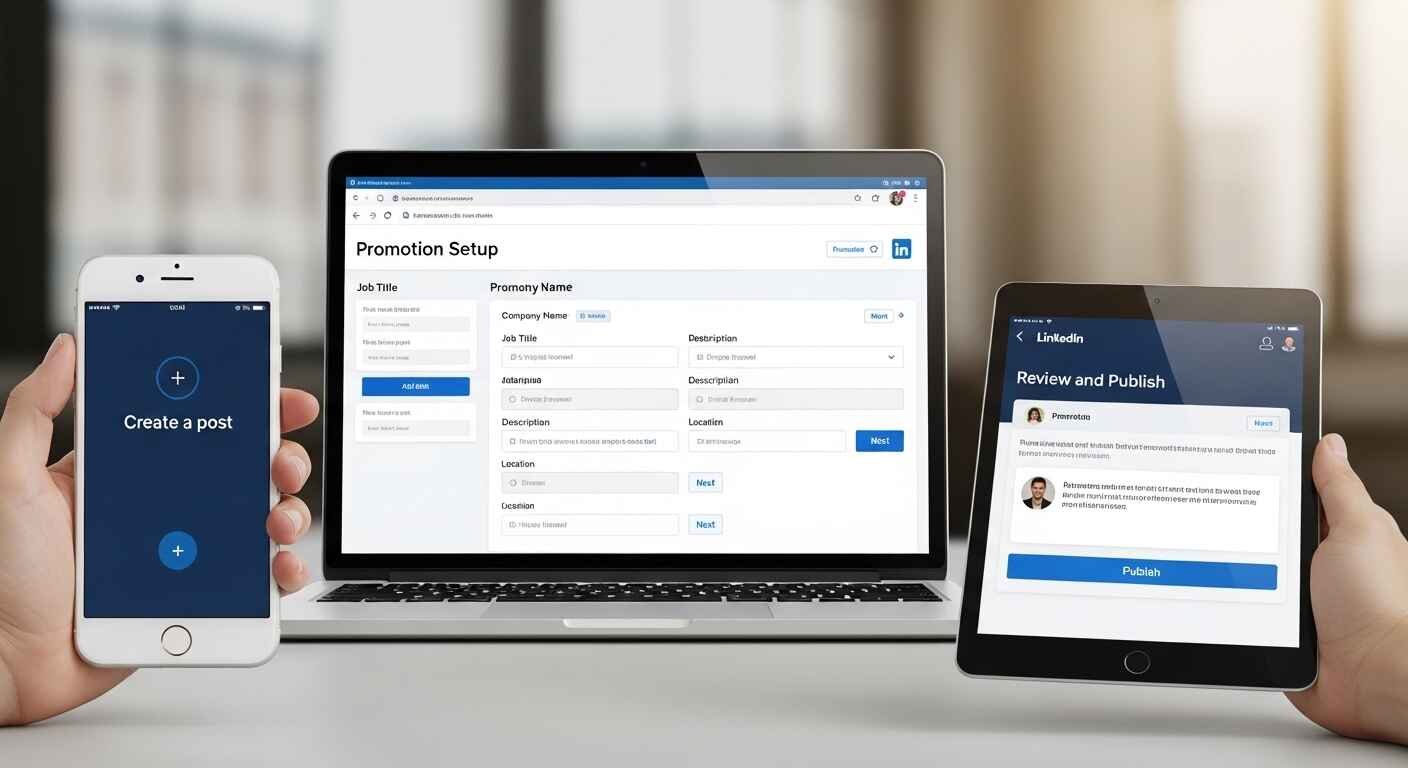
Before diving into the steps, let’s understand why this matters:
- Improves your professional credibility
- Shows career growth to recruiters
- Helps your network stay updated
- Increases profile visibility in searches
If you’re wondering, “How do you add a promotion to LinkedIn?” — don’t worry, it’s easier than you think.
How to Add a Promotion on LinkedIn (Step-by-Step)
Follow these simple steps to update your promotion:
- Go to your LinkedIn profile
- Scroll to the Experience section
- Click the + icon or edit your current role
- Choose “Add position”
- Enter your new job title
- Select the same company
- Add start date and description
- Save changes
That’s it! Your promotion is now visible.
LinkedIn How to Show Promotion in Same Company
Many users get confused about this.
If you’re asking: “How do I add a new role to the same company on LinkedIn?”, here’s the correct way:
- Do NOT create a separate company entry
- Add a new role under the existing company
- LinkedIn will automatically group roles
This creates a clean timeline and clearly shows your career growth.
LinkedIn Promotion vs New Position
Understanding LinkedIn promotion vs new position is important:
Promotion (Same Company):
- Shows growth within one organization
- Roles are grouped together
- Best for internal career progression
New Position (Different Company):
- Adds a separate company entry
- Indicates a job change
Always choose wisely, as this impacts how recruiters view your journey.
How to Add a Promotion on LinkedIn App
If you prefer mobile, here’s how to add a promotion on LinkedIn app:
- Open the LinkedIn app
- Tap your profile picture
- Scroll to Experience
- Tap the pencil icon
- Tap Add position
- Enter updated role details
- Save
Simple and quick!
How to Add a Promotion on LinkedIn on iPhone
The steps for how to add a promotion on LinkedIn on iPhone are almost identical:
- Use the LinkedIn iOS app
- Navigate to your profile
- Edit Experience
- Add new role under the same company
Make sure your app is updated for the latest interface.
How to Add Promotion on LinkedIn on Laptop
Prefer desktop? Here’s how to add promotion on LinkedIn on laptop:
- Log in via browser
- Click your profile
- Go to Experience section
- Click Add position
- Fill in new role details
- Save
Desktop gives you better control for detailed descriptions.
How to Add a Promotion on LinkedIn YouTube (Learning Option)
If you’re a visual learner, searching “How to add a promotion on LinkedIn YouTube” can help. Video tutorials show real-time steps and interface changes, making it easier to follow along.
How to Add a Promotion on LinkedIn Reddit (Community Insights)
Looking up “How to add a promotion on LinkedIn Reddit” can give you real user experiences.
Users often share:
- Mistakes to avoid
- Best formatting tips
- Real examples of promotion updates
However, always verify advice with LinkedIn’s official features.
How Do I Announce My Promotion?
Once your profile is updated, the next step is announcing it.
If you’re wondering, “How do I announce my promotion?”, follow this structure:
- Start with gratitude
- Mention your new role
- Appreciate your team/company
- Share excitement for the future
Example:
“I’m excited to share that I’ve been promoted to Senior Marketing Manager. Grateful to my team for their support and looking forward to new challenges ahead!”
Best LinkedIn Promotion Posts (Tips & Examples)
Creating best LinkedIn promotion posts requires balance.
Tips:
- Keep it short and genuine
- Avoid bragging
- Show appreciation
- Add a personal touch
Example Post:
“I’m happy to share that I’ve stepped into a new role as Team Lead. Thanks to everyone who supported me on this journey!”
What is the 3/2/1 Rule on LinkedIn?
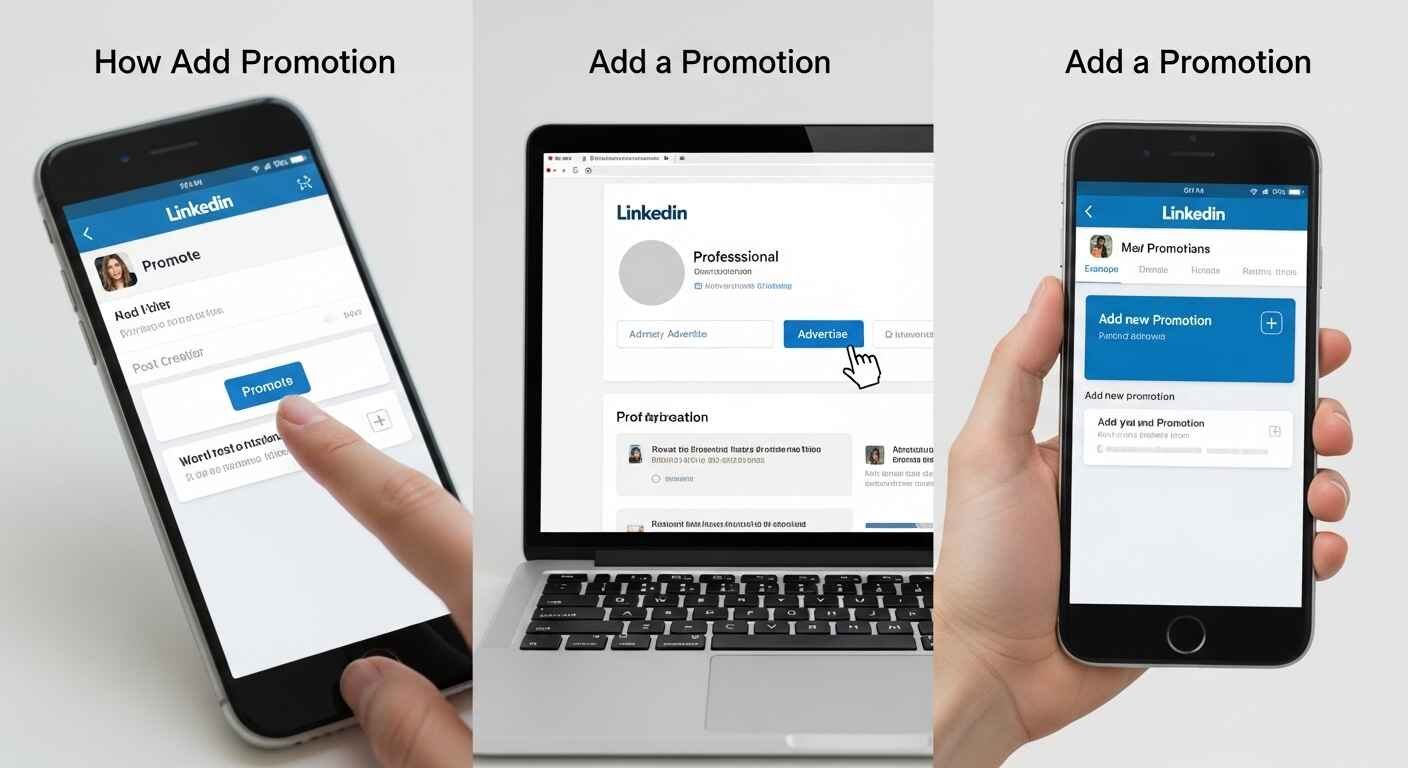
The 3/2/1 rule on LinkedIn is a content strategy:
- 3 posts: Educational or valuable content
- 2 posts: Personal insights or experiences
- 1 post: Promotion or achievement
This keeps your profile engaging without sounding overly self-promotional.
Common Mistakes to Avoid
When adding a promotion, avoid these:
- Creating a new company entry
- Not updating job description
- Skipping announcement post
- Writing overly long updates
Keep everything clear and professional.
Pro Tips to Optimize Your Promotion Update
- Use keywords in your job title
- Add measurable achievements
- Update skills section
- Request recommendations
This improves your SEO visibility on LinkedIn.
Conclusion:
Now you know exactly how to add a promotion on LinkedIn, whether you’re using mobile, desktop, or iPhone. You also understand the difference between LinkedIn promotion vs new position, and how to present your growth effectively.
Remember, LinkedIn is not just a resume—it’s your personal brand. Updating your promotion correctly and announcing it thoughtfully can open new opportunities.